The Problem Every Weighbridge Site Faces in 2026
From October 2026, every permitted waste receiving site in England and Wales must submit incoming waste movement data to the Environment Agency’s Digital Waste Tracking (DWT) platform on the day of receipt. Scotland and Northern Ireland follow from January 2027.
For sites with a physical weighbridge, this creates a specific challenge: the weighbridge captures accurate weight data, but that data needs to get into the DWT platform as a structured digital submission — with EWC codes, carrier registration numbers, waste descriptions, and a Waste Tracking ID returned by the EA.
Most small and medium weighbridge operators face one of three situations:
Situation 1 — Paper dockets only. The weighbridge prints a ticket. Someone writes a WTN by hand. There is no digital workflow at all. October 2026 requires a complete process change.
Situation 2 — Weighbridge software with CSV export. The site uses Loadmaster, RecyClass, Whitman, or similar software that exports weight data as CSV. The data exists digitally but is not connected to the DWT platform.
Situation 3 — Serial output weighbridge, no software. The indicator displays and prints weights but has no software layer. The weight data is accessible via a CSV export folder connection but nothing reads from it automatically.
This guide covers how to move from each of these situations to full DWT compliance before October 2026.
None of these situations require replacing a weighbridge that still works. The DWT mandate is a requirement to submit data digitally — not an instruction to rip out working hardware. If your weighbridge produces a CSV, or has a serial output at all, you already have the data; WasteBolt is simply the pipe that moves it to the right place.
Watch the Tutorial
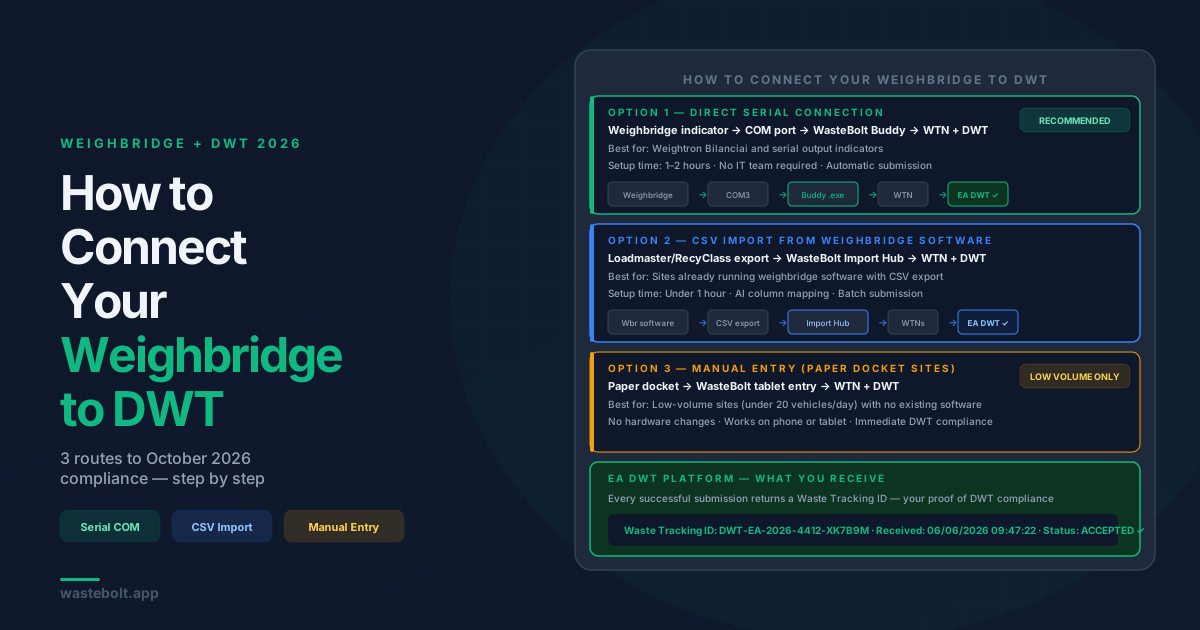
Option 1 — Direct Serial Connection via WasteBolt Gatehouse
If your weighbridge indicator has a serial (watch folder) output — which most Weightron Bilanciai and similar indicators do — WasteBolt Gatehouse connects directly to it and reads live weight data.
How to set up the CSV export:
Step 1 — Identify your watch folder On the yard computer, open Device Manager (right-click Start → Device Manager → Ports). Your scale indicator will appear as a watch folder — typically COM3 or COM4. Note the port number.
Step 2 — Check the baud rate The baud rate must match between the indicator and Buddy. Most Bilanciai indicators run at 9600 baud. Check your indicator manual or the indicator settings menu to confirm.
Step 3 — Install WasteBolt Gatehouse
Download the .exe installer and run it on the yard computer. Log in with your WasteBolt account credentials. The app connects to your WasteBolt data immediately.
Step 4 — Configure the scale connection In Buddy’s settings, select your watch folder and set the baud rate to match your indicator. Click Connect. Buddy will display the live weight reading from your scale — if it shows a number, the connection is working.
Step 5 — Test with a simulated movement
Use Buddy’s simulated scale mode to run a full test movement without a vehicle on the weighbridge. Enter a test gross weight, tare weight, select a waste type and carrier from your pick-list, and complete the movement. Check that the WTN appears in your WasteBolt Compliance Hub and that a PDF has been saved to ~/WasteBolt_WTNs/ on the yard computer.
Step 6 — Enable DWT submission In your WasteBolt account settings, ensure your site authorisation number (environmental permit or exemption) is entered. Buddy will include this in every DWT submission. From this point, every completed weighbridge movement generates a WTN and submits automatically to the EA DWT platform.
Option 2 — CSV Import from Existing Weighbridge Software
If your weighbridge already runs software that exports CSV files — Loadmaster, RecyClass, Whitman, or a custom system — WasteBolt’s CSV import workflow connects that data to the DWT platform without replacing your existing software.
How the CSV import works:
Step 1 — Export from your weighbridge software Export your movement data from the weighbridge software in CSV format. The file needs to contain at minimum: vehicle registration, gross weight, tare weight, date and time, and an identifier for the waste type or customer.
Step 2 — Upload to WasteBolt Go to WasteBolt → Import Hub → Upload CSV. WasteBolt’s AI-assisted column mapper (Bolt Map Columns) reads your file structure and suggests which columns correspond to which WTN fields. You confirm the mapping once and save it as a template — future imports from the same system use the saved template automatically.
Step 3 — Review and approve The import review screen shows each movement from the CSV, with the mapped data populated into the WTN fields. You can correct any mismatches — wrong EWC code, unrecognised carrier — before approving the batch.
Step 4 — Generate WTNs and submit to DWT Approving the batch generates WTNs for all movements and submits them to the EA DWT platform in one operation. Each movement receives a Waste Tracking ID confirming successful submission.
Step 5 — Save the column mapping as a template Save the column mapping as a named template in WasteBolt. Future CSV exports from the same weighbridge software use the same template — the import process becomes a daily or weekly routine of export → upload → approve.
See our weighbridge bridging software guide for a full walkthrough of the CSV import workflow and how it bridges existing weighbridge software to DWT.
Which weighbridge systems does this work with?
If your weighbridge software can export a CSV or delimited text file, WasteBolt Gatehouse can work with it. That covers virtually all common UK weighbridge platforms, including:
- Weightron Bilanciai
- Loadmaster
- RecyClass
- Whitman
- Masswinn
- Globeweigh (WinWeigh)
- Avery Weigh-Tronix
- Mettler Toledo
- Rice Lake
- Fairbanks
- Most bespoke and in-house weighbridge solutions
The only systems that cannot use Gatehouse directly are those that generate PDF dockets only, with no data export at all. If that describes your setup, get in touch — we can advise on workarounds.
What your weighbridge already gives you — and what’s missing
Most weighbridge exports already contain the bulk of what DWT needs. The gap is almost always EWC codes and formal waste descriptions, which weighbridge software was never designed to hold:
| DWT requirement | What your weighbridge records |
|---|---|
| Waste producer | Customer / account name |
| Net weight | Net weight in kg or tonnes |
| Date of movement | Date in / date out |
| Vehicle | Vehicle registration |
| Reference / docket number | Ticket or transaction number |
| EWC code | Assigned via WasteBolt Import Template |
| Waste description | Assigned via WasteBolt Import Template |
EWC codes and formal waste descriptions are the fields that typically need supplementing — Import Templates handle this automatically once they’re set up, matching each row to the right template based on the product or material name in the CSV.
What this looks like day to day
A transfer station running 80 movements a day might have 15 regular customers. Each customer gets an Import Template set up once. From then on, the daily routine is: the weighbridge exports its end-of-shift CSV, Gatehouse detects the file within seconds, Import Templates match all 80 rows, the manager clicks Process All Matched, 80 WTNs are created with every field populated, and they’re submitted to the EA in bulk from WasteBolt’s DWT Submit view. The whole process from CSV to submitted WTN takes a few minutes with no manual data entry per load.
How long setup takes
Most sites are running within an hour or two:
- Download and install Gatehouse: ~5 minutes
- Sign in and configure the watch folder: ~2 minutes
- Upload a sample CSV and map the columns: ~10–15 minutes
- Create Import Templates for your material types or regular customers: ~20–30 minutes for a handful of types, up to half a day for a site with 10–20 regular customers
After that, Gatehouse runs in the background automatically — new CSV files trigger a sync without anyone having to intervene.
Option 3 — Manual Entry with WasteBolt (Paper Docket Sites)
For sites currently running entirely on paper dockets with no weighbridge software, the most practical route to DWT compliance is to use WasteBolt on a tablet or the yard computer to log each movement as it happens.
This is not an automated connection to the weighbridge — weights are read from the docket or the indicator display and entered manually. But it gives you a structured digital workflow that generates WTNs and submits to DWT, which is what the mandate requires.
The workflow:
- Vehicle arrives — yard operative opens WasteBolt on tablet or yard computer
- Selects carrier from pick-list (pre-populated from previous movements)
- Selects waste type and EWC code from pick-list
- Reads gross weight from indicator, enters into WasteBolt
- Vehicle exits — reads tare weight, WasteBolt calculates net automatically
- Confirms and submits — WTN generated, DWT submission sent, PDF saved
For sites with moderate throughput (under 20 vehicles per day), this is a workable route to October 2026 compliance. For higher-throughput sites, the direct CSV export via WasteBolt Gatehouse is significantly more efficient.
Which Option Is Right for Your Site?
| Situation | Recommended route |
|---|---|
| Weightron Bilanciai or serial output indicator | WasteBolt Gatehouse — direct CSV export |
| Loadmaster, RecyClass, Whitman, or CSV-exporting software | WasteBolt CSV import with column mapping template |
| Paper dockets only, under 20 vehicles per day | WasteBolt manual entry on tablet/yard computer |
| Paper dockets only, high throughput | WasteBolt Gatehouse simulated scale mode + manual weight entry, or direct serial if indicator supports it |
What the DWT Submission Contains
Regardless of which connection method you use, every DWT submission from WasteBolt contains the full data set required by the EA API:
- Date and exact time of receipt
- Your site authorisation number (permit or exemption)
- EWC code (six digits)
- Waste description
- Physical form and containment type
- Weight — amount and unit
- Whether the waste contains POPs — mandatory field
- Whether the waste is hazardous
- Carrier organisation name and registration number (CBDU/CBDL format)
- Vehicle registration number
- Means of transport
- R or D code — or explicitly none
A fully DWT-compliant WTN also needs full producer details (including permit number), full carrier details (including waste carrier licence number), and full consignee details (including permit number and email) — fields your weighbridge ticket was never going to capture on its own. This is exactly what Import Templates and your saved WasteBolt account details fill in automatically, so nobody is typing permit numbers per load.
WasteBolt’s DWT Submit view runs a readiness check on every WTN before submission — carrier name, vehicle registration, receiver permit number, EWC code, and weight are all checked. Because Gatehouse and Import Templates populate these fields automatically, the checks typically pass for every matched record. Any issues are flagged clearly as errors or warnings before you submit, and WasteBolt validates all required fields before submission, returning the Waste Tracking ID on success. Failed submissions are flagged with the specific reason so they can be corrected and resubmitted.
Getting Ready Before October 2026
Now — June to August 2026
- Identify which option applies to your site (serial, CSV, or manual)
- Register your site with the EA DWT platform if you have not already — go to the Defra DWT registration portal
- Start a WasteBolt trial and test DWT submissions with real or simulated movements
- For CSV export sites: identify your watch folder and baud rate, test Buddy connectivity
August to September 2026
- Have your chosen integration method confirmed and working
- Train all yard staff who will be logging movements
- Run a full week of movements through WasteBolt alongside your existing paper system to catch any issues before the mandate starts
October 2026
- Mandatory DWT submission begins
- Every waste receipt must be recorded on the DWT platform on the day of receipt
- Paper-only sites without a digital submission route face enforcement risk from this date
Frequently Asked Questions
Does the EA DWT platform replace the Waste Transfer Note? For receiving sites, the DWT submission becomes the primary legal record of receipt from October 2026. WTNs are still required for the transfer itself — the DWT submission is an additional obligation on the receiving site, not a replacement for the WTN.
How long does a DWT submission take? With WasteBolt Gatehouse or the CSV import route, submission is automatic and takes seconds per movement. The EA API typically returns a Waste Tracking ID within a few seconds of submission.
What if the EA DWT platform is unavailable? WasteBolt queues submissions when the EA API is unavailable and retries automatically. The requirement is to submit on the day of receipt — brief API outages are unlikely to result in enforcement action if you can demonstrate attempted submission.
Do I need to register my site separately with the DWT platform? Yes. Your site must be registered on the EA DWT platform before you can submit movements. Registration is separate from your environmental permit and is done through the Defra DWT portal. WasteBolt handles the API connection once your site is registered.
Can WasteBolt Gatehouse handle hazardous waste movements? Yes. Buddy captures all required fields for hazardous movements including HP codes, POPs components, and consignment note codes. These are included in the DWT submission automatically.
Last updated: September 2026. October 2026 DWT mandate applies to England and Wales. Scotland and Northern Ireland follow January 2027. Contact team@wastebolt.app for weighbridge compatibility queries.