What are Tasks?
Tasks let you assign waste collection jobs to your drivers and team members directly from the WasteBolt dashboard. Each task can be linked to a waste document — a WTN, Hazardous Waste Consignment Note (HWCN), or Season Ticket — giving you a complete, auditable record of every job.
Creating a Task (Admin only)
Only admin accounts can create tasks. Open Task Manager from the main dashboard navigation.
- Click New Task
- Fill in the task fields (see below)
- Click Save — the task appears immediately in the assigned driver’s My Tasks list
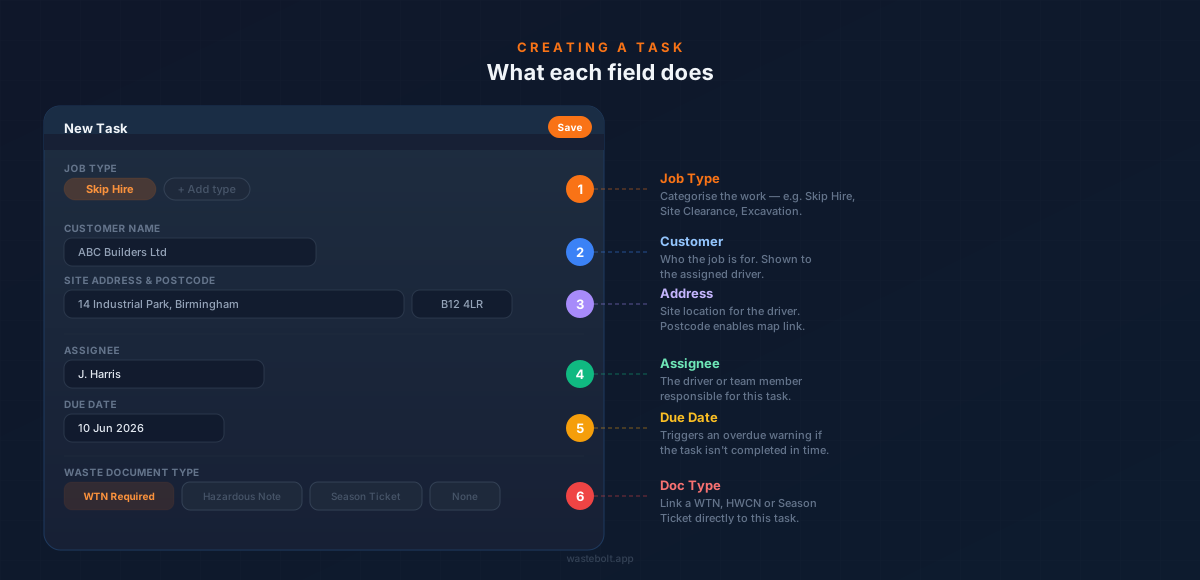
Task Fields Explained
| Field | What it does |
|---|---|
| Job Type | Categorise the work — e.g. Skip Hire, Site Clearance, Excavation. Add custom types using the Job Type picker. |
| Customer Name | Who the job is for. Shown to the assigned driver on their mobile. |
| Site Address | Location of the job. The postcode enables a map link for the driver. |
| Assignee | The driver or team member responsible. Must be a seat user on your account. |
| Due Date | When the job needs to be completed. Overdue tasks are flagged in red automatically. |
| Waste Document Type | Link the task to a WTN, HWCN, or Season Ticket — or leave as None if no document is needed yet. |
| Notes | Any additional instructions or information for the driver. |
Task Status Lifecycle
Each task moves through three stages:
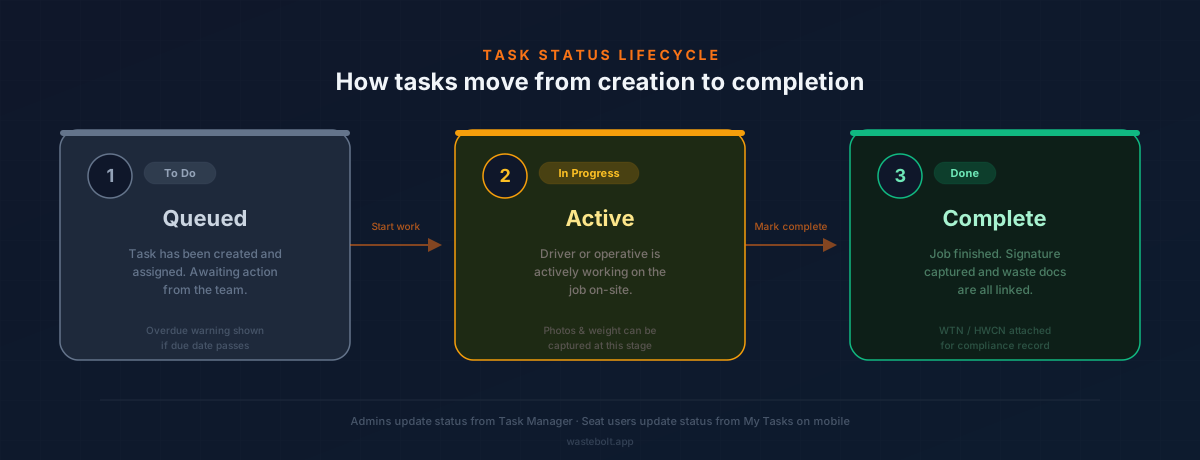
- To Do — Task created and assigned. Waiting to be started.
- In Progress — Driver has arrived on-site and started the job.
- Done — Job complete. All evidence captured and documents linked.
Overdue warning: If a task reaches its due date without being marked Done, it is highlighted in red on the admin dashboard.
Admins can update status directly from the Task Manager table. Seat users update their own status from the My Tasks page on mobile.
How Seat Users Complete Tasks
When you assign a task to a seat user, it appears immediately in the My Tasks section of their WasteBolt account — no notification needed, it just shows up.
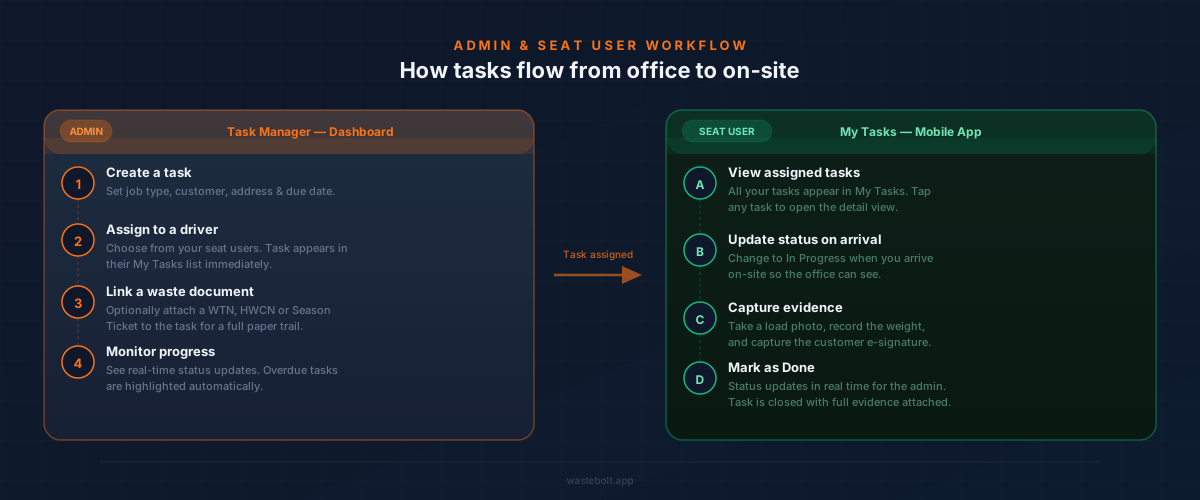
On mobile, the seat user can:
- View the full job details, site address, and any linked waste documents
- Update the status to In Progress when they arrive on-site
- Capture a load photo directly from their phone camera
- Record the weight if a weighbridge or manual entry is available
- Capture a customer e-signature on-screen for legal compliance
- Mark the task as Done once the job is complete
All of this updates in real time so you can see progress from the dashboard without needing to call the driver.
Linking Waste Documents
You can link a waste document to a task in two ways:
When creating the task: Set the Waste Document Type field to WTN Required, Hazardous Note, or Season Ticket. If you select Season Ticket, you can choose which active season ticket to link from a dropdown.
From the WTN or HWCN form: When creating a waste transfer note, you can associate it with an existing task so the document and job are connected for your records.
Tips
- Use job types to group and filter tasks quickly. Colour-coded badges make the task list easy to scan at a glance.
- Tasks with a due date show overdue warnings automatically — use this to keep your team accountable without micromanaging.
- Seat users only see tasks assigned to them — they cannot view other drivers’ tasks.
- If a job requires a Hazardous Waste Consignment Note, set the doc type to Hazardous Note so the driver is prompted with the correct paperwork.
- You can generate a shareable link for a task to send directly to a customer or subcontractor.
What’s Next
- Create a WTN or Create a Digital Consignment Note — the documents a task can link to.
- Using WasteBolt Gate — the fastest way to log a load once a task is complete.
- How to Use My Site AI and WasteBolt Linked — the other Compliance Tools features.